

OUR BLOG

Spotting Scam Emails
We all remember the “I am a Nigerian Prince” scam emails from a decade ago which has become a pop-culture reference for scam emails.
These days, people are putting a lot more effort into trying to trick you into giving over your personal information and/or payment details. Some copy a genuine email that a company uses, including logos, then tweak it to help them get the details they need. They are often forceful and try and use scare tactics to make you fall for the scam.
We all remember the “I am a Nigerian Prince” scam emails from a decade ago which has become a pop-culture reference for scam emails.
These days, people are putting a lot more effort into trying to trick you into giving over your personal information and/or payment details. Some copy a genuine email that a company uses, including logos, then tweak it to help them get the details they need. They are often forceful and try and use scare tactics to make you fall for the scam.
Below is an email I received back in March claiming to be from Apple:
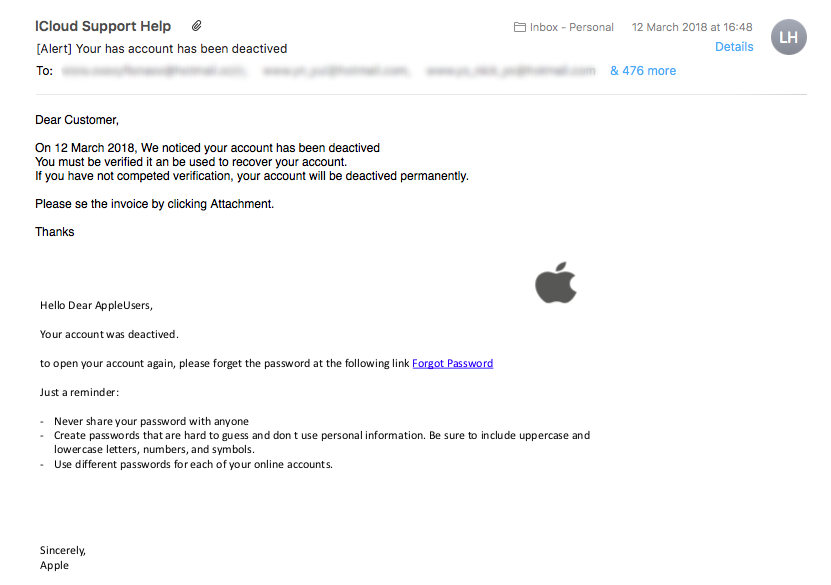
Here are some things to look for that can help you decide if this is a genuine email or a fake.
Full Contact Email
If you click on the downward arrow as you hover over the sender name you can view the actual email address that sent it.
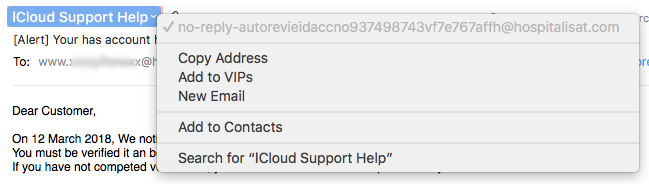
This is not an Apple address, so this just screams scam to me.
Multiple Recipients
If there is ever a problem with your account, why do 479 other people need to be receiving this email about your account?

Use of Language
Very often, scam emails have poor spelling and grammar. In the example email “You must be verified it an be used to recover your account.” has clearly not been proof read before sending.
They are often very forceful. Saying things will be deleted or removed permanently. This is a scare tactic to try and make you go along with their scam straight away.
If in Doubt
If you are unsure if it is a genuine email or not, close the email and visit the company website and contact them by the details they provide in their Contact page. That way you can be sure you are speaking to the real company and they can tell you if there is genuinely an issues with your account.
Anti-Spam/Anti-Scam Solutions
There are anti-spam services available to help stop these types of emails reaching your inbox in the first place such as Reflexion. This can help reduce the amount of junk and scam emails you receive.
If you would like to know more about products and services that could reduce your spam/scam email that lands in your inbox, please give us a call. One of our team would be happy to discus ways of helping you.

iPad Pro - Portability
When my MacBook Pro died at the end of last year I was faced with a decision; what do I replace it with. I looked at my requirements and top of the list was portability.
I looked at Apple’s laptop line-up and was stuck between the power of the MacBook Pro and the portability of the MacBook/MacBook Air. Then it occurred to me that there was another option; the iPad Pro.
Portable, lightweight, never-ending battery
When my MacBook Pro died at the end of last year I was faced with a decision; what do I replace it with? I considered at my requirements and top of the list was portability.
Looking at Apple’s laptop line-up I was stuck between the power of the MacBook Pro and the portability of the MacBook/MacBook Air. Then one other option occurred to me; the iPad Pro.
I picked up the 12.9” model for maximum screen size (mostly for multi-tasking) with 256GB of storage. It was a gamble, but one that 9 months later I’m over the moon with. The iPad Pro isn’t for everyone but for me it’s been a revelation.
The hardware retains the power of a MacBook Pro and while you lose the power of macOS, you also gain the power of iOS. It’s a different beast that takes a little getting used to but it’s works amazingly well.
Most importantly, this is the most portable device I’ve ever owned. It’s nearly half the weight of my last MacBook Pro (only 631g) and super thin. It fits in any bag and is so light you forget it’s even there. It works just as well on the couch, at a desk, in bed, on my lap or even on the floor. I work in all kinds of environments from offices to server rooms to coffee shops and can find a way to use the iPad in positions I just can’t use a laptop.
The other major revelation is the battery. With a genuine 10+ hour battery life it mostly lasts all day, which is more than I can say for my old MacBook Pro. Unlike the laptops, you can also use external battery packs. I picked up an Anker battery for about £35 that has another 2 full charges in it, meaning I don’t need to use the wall to power the iPad for over 30 hours of actual use. I can also use either the iPad or the battery to charge my iPhone too. This has been a life-saver when out and about, away for the weekend or when I’m sat too far away from an outlet for the charger to reach.
The iPad Pro has been a brilliant addition for me and I’m thoroughly enjoying using it. I’m planning to write some more blog posts about it so if you’re interested in how it’s working for me and how it’s fitting into my work then watch this space.
4 Ways To Raise A Ticket
We try to make it easy to raise a ticket, so we have 4 different ways. Since most people only know one or two, we thought we'd list them here.
We try to make it easy to raise a ticket, so we have 4 different ways. Since most people only know one or two, we thought we'd list them here.
Automated
Most of the time the tickets are raised automatically by your backups, server or other systems. In this case we take care of it for you and if you don't need to take any action we just close the ticket behind the scenes.
Website
Click Account Login at the top of this site and use your email address and password to access your tickets. If you can't remember your password there is a password reset option right there too. Once logged in you can view your tickets, invoices, agreements etc.
Probably the easiest way to raise a ticket is via email. Just email us and a ticket will be raised in your name and your account manager will be alerted. As ever, we'll look into it and get back to you ASAP.
Phone
If you have an emergency, or just don't have the time to raise a ticket (or if your internet is down!) you can always call us. 01865 882504 is all you need remember.
What Do We Use To Make Life Easier?
Everyone does things slightly differently, and we all want to make work a little easier. Here are some of our favourite little apps to help just a little every day.
Everyone does things slightly differently, and we all want to make work a little easier. Here are some of our favourite little apps to help just a little every day.
Caffeine - Stop your Mac sleeping
A free app that couldn't get any more simple. Once installed there is a coffee cup in your menu bar near the clock. If it's steaming your Mac won't sleep. If it's empty it will sleep as normal. Click once to change modes, once to change back—it's that simple. Great if you want us to remotely fix something while you're at lunch. Download it here.
TextExpander - Type common things quicker
TextExpander is a very cheap monthly service which allows you to instantly insert common snippets of text for emails, boilerplates, form fills and anything else you use text for using a quick search or abbreviation. Get it here.
We use it for our signatures for example. I type ;sig and it expands to:
Many thanks
Matt Cox | ACMT, ACTC, ACSP
Lead Engineer | Oxford Mac Solutions
50 Acre End Street, Eynsham, OX29 4PD
+44 (0)1865 882504 | matt.cox@omsuk.com | www.omsuk.com
DinoPass - Easy password generator
When you want a secure password, but you can't think of one, this is the place to look. It's simple, doesn't use any offensive words and the kids will love it too. Check out DinoPass here, it's free!
5 Tips To Make Your Mac Safer
Working on a Mac in inherently safer than working on a PC, but that doesn't mean we can't make our Macs safer. Here are 5 tips to help you do just that:
Set a good password
It sounds simple, but how many of you don't have a password? Is it 123? Is it your username? Password? Blank? Setting a good password is the first stage to making your Mac safer. Just open System Preferences, then Security & Privacy and choose Change Password...
While you're in there, it's a good idea to Require password immediately after sleep or screen saver begins. Why wouldn't you?
Working on a Mac in inherently safer than working on a PC, but that doesn't mean we can't make our Macs safer. Here are 5 tips to help you do just that:
Set a good password
It sounds simple, but how many of you don't have a password? Is it 123? Is it your username? Password? Blank? Setting a good password is the first stage to making your Mac safer. Just open System Preferences, then Security & Privacy and choose Change Password...
While you're in there, it's a good idea to Require password immediately after sleep or screen saver begins. Why wouldn't you?
Encrypt your Mac
We know this one sounds scary, and traditionally you've heard it slows machines down etc. Well not anymore. Pop into System Preferences, then Security & Privacy, then FileVault. Choose Turn On FileVault and follow the instructions. It takes about one minute, a quick restart and then you're all ready to go. The only difference you'll notice is that you login before the Apple logo after you reboot, instead of after. Not so scary, huh?
Turn on the Firewall
Firewalls can cause issues, but we all turned our Macs Firewalls on years ago and haven't thought about them since. Just open System Preferences, then Security & Privacy, then Firewall and choose Turn On Firewall. Yes, it's really that simple.
Auto logout
A hidden gem. When you walk away from your machine and you forget to log out, or you leave something running for a while and want to go get some lunch, it would be great if the Mac could log out of it's own accord. Well it can!
Pop back into System Preferences, then Security & Privacy, then click Advanced in the lower right corner. Enable Log out after x minutes of inactivity and the next time you walk away you'll be thankful for it. Locked, encrypted and safe.
While you're at it, check the other box in there so nothing can change any of these security settings without your password in the future. That stops the bad guys working around it all too easily.
Lock the screen
Another often overlook option is to lock the screen when you walk away. Open System Preferences, then Desktop & Screen Saver, then go to the Screen Saver tab. Choose a screensaver, set a time for it to start after and choose Hot Corners. You can now choose a corner which, when you put your mouse cursor near it, starts the Screen Saver and a number of other things too.
Tip: You can hold down some of the special keys on the keyboard, while selecting what the corner does and it will require that key be held while the cursor nears that corner to set the event off. This saves you starting the screensaver automatically.
So there you have it. 5 tips to make your Mac safer. If you have trouble with any of them, just give us a call and we'll take a look with you.